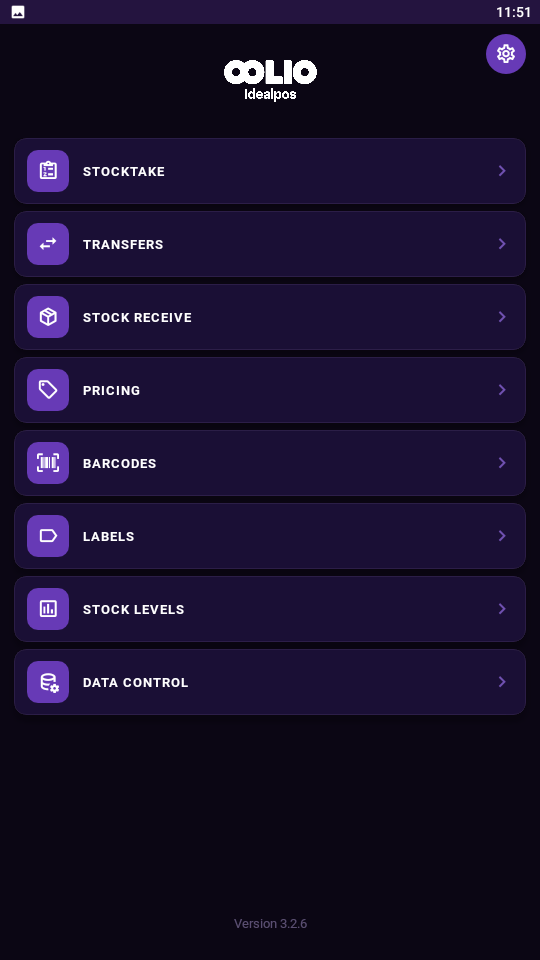
The Labels menu enables Stock Item Labels to be requested from Pocket Stock and printed at the Idealpos Back Office.
Labels that are requested from Pocket Stock will be available via Idealpos Back Office > Utilities > Labels > Pocket Stock Data.
Note!
This feature requires Idealpos v10 Build 1 or newer!
If using an older build of Idealpos, pressing the Labels button on the Pocket Stock main menu will trigger the following prompt:
Upgrade Required
The feature requires an upgraded version of Idealpos. Please contact your reseller.
After upgrading to Idealpos v10 Build 1 or newer, select the Data Control option from the Pocket Stock main menu > Download.
This will download the latest data from Idealpos and enable access to the Labels functionality.
To use the Pocket Stock Labels functionality, select the Labels option from the main Pocket Stock menu.
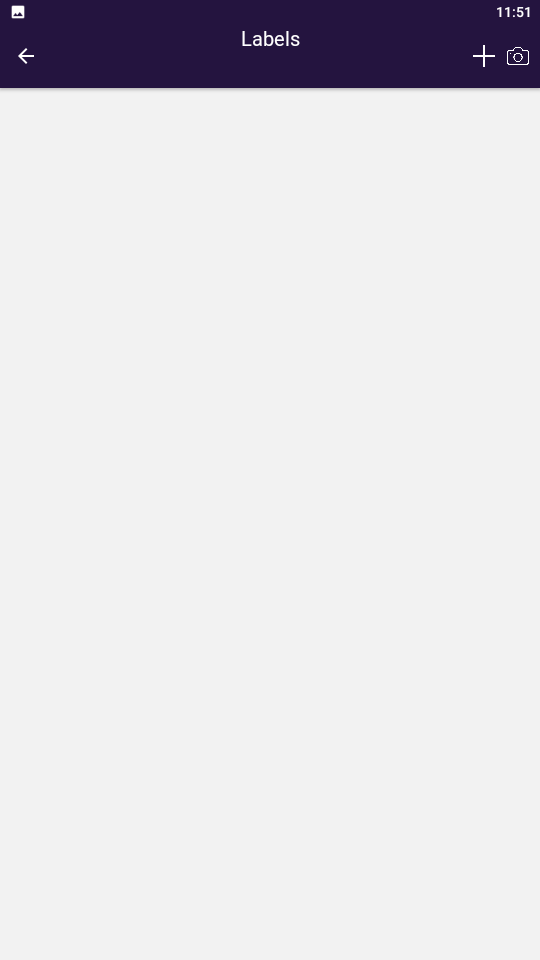
Any Labels that have previously been requested will be displayed here, otherwise the page will be blank.
Items can be added manually via the "+" button, or they can be scanned via the Camera Scan function or using a barcode scanner such as the Sunmi L2S.
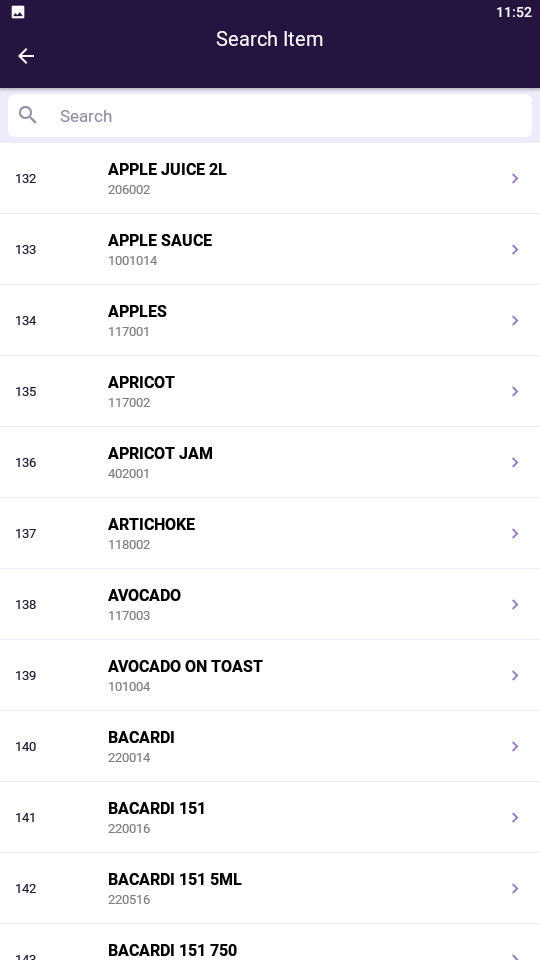
When pressing the "+" button, the Stock Items list will be displayed.
Scroll through the list of Stock Items and select a Stock Item to request a label.
If required, the Search field at the top of the screen can be used to enter a Stock Item Description to filter the list of items.
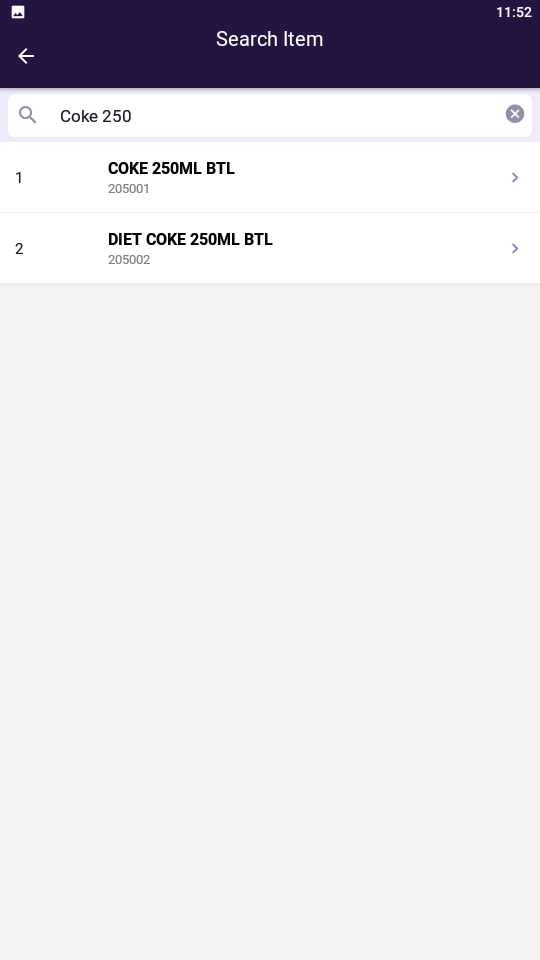
After a Stock Item has been selected, it will be added to the list of items with a quantity of 1 label.
Every item that is added will have the label quantity set to 1.
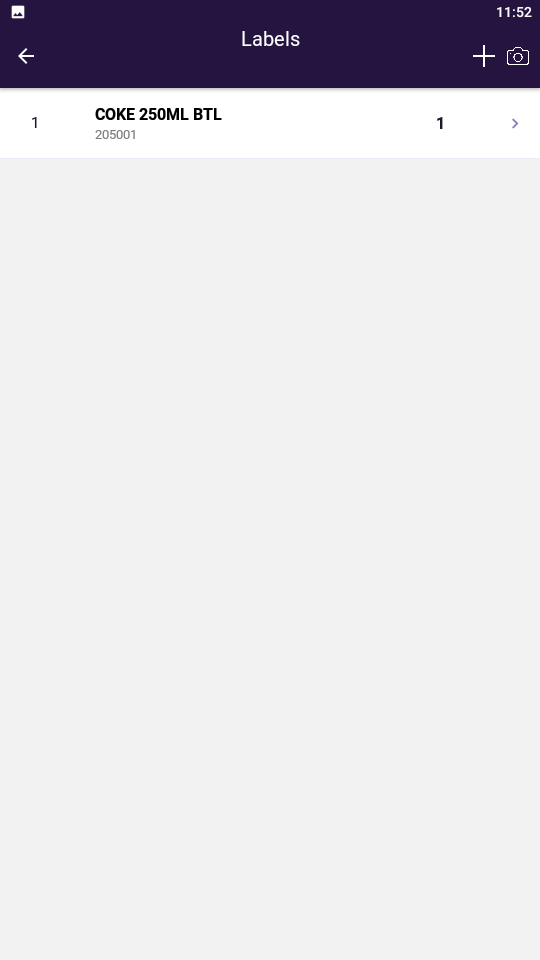
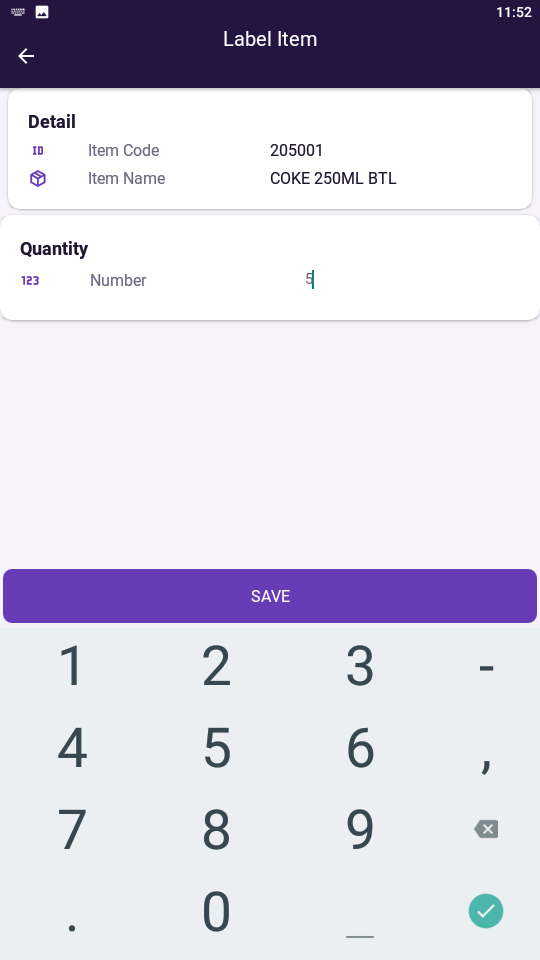
If you require more than one label for an item, select the item from the list then enter the required number of labels for the item > Save.
The number of labels for the item will be displayed next to the item.
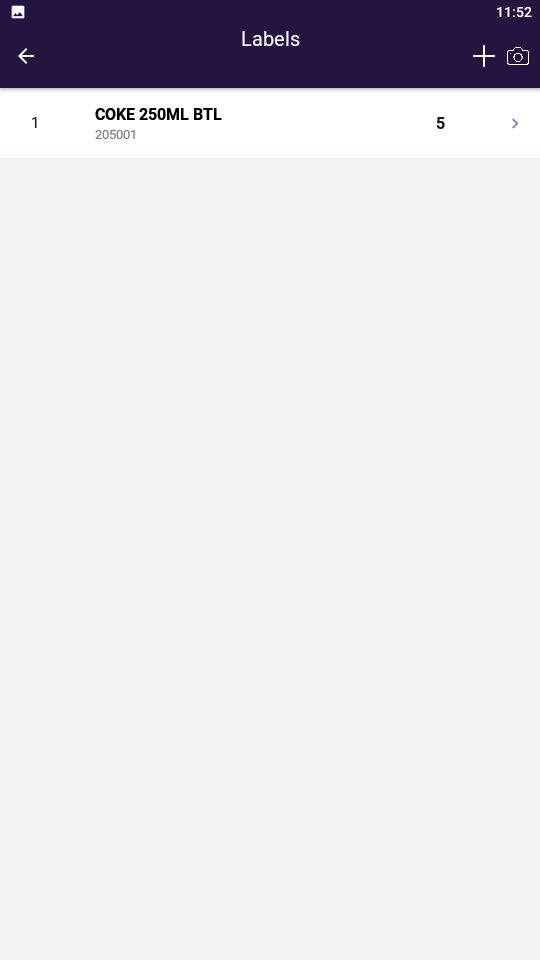
Repeat the above process for each Stock Item that requires a label.
Once labels have been requested for all the required Stock Items, the data can be uploaded to Idealpos.
To upload Label data to Idealpos, go to the Pocket Stock main menu > select Data Control > Upload.
Refer to the Process Stock Labels topic for more information about processing the Label data/printing Labels in Idealpos.